
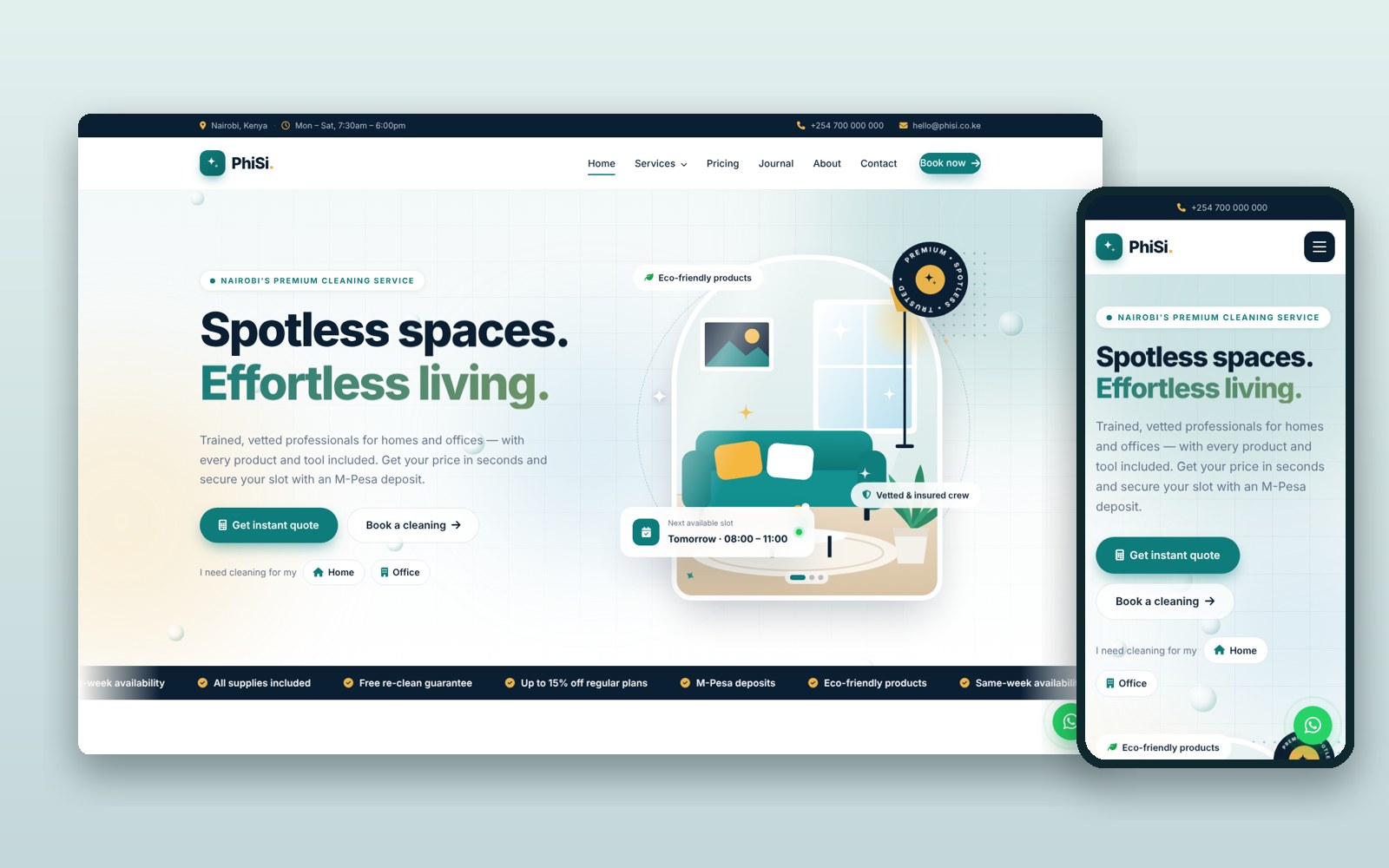
PhiSi – Cleaning Services Website with Online Booking
A premium website for home and office cleaning companies: instant price calculator, online booking, M-Pesa deposits that confirm bookings automatically, and an admin to run the whole business.
A luxury hotel & resort website with room booking, PDF receipts, guest booking management, blog and a full admin dashboard.
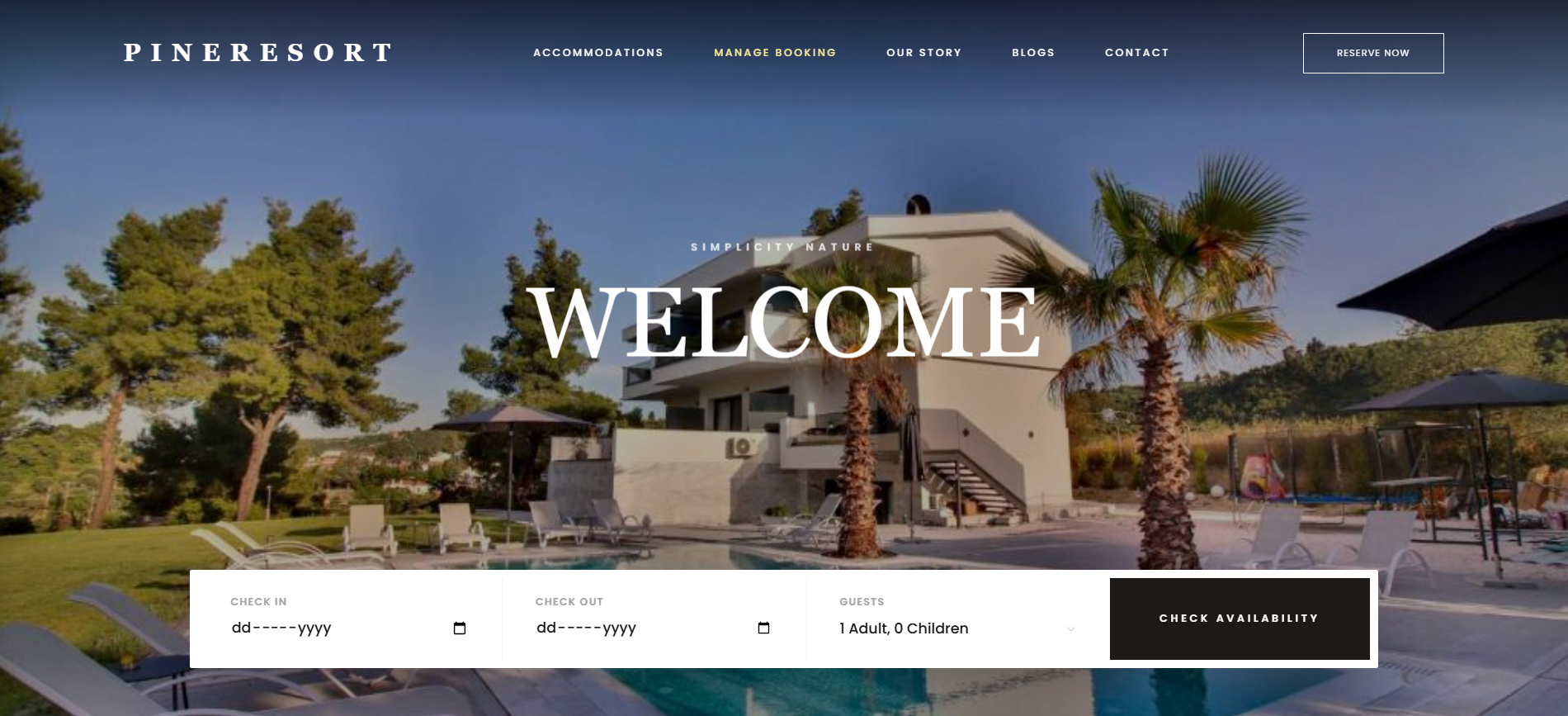
Pineresort is an elegant, mobile-friendly website for hotels, resorts, lodges and guest houses. Guests can browse rooms, check prices and book their stay online, then download a PDF receipt or manage their booking themselves, with no phone calls needed.
Who it's for
Hotels, eco-lodges, safari camps, guest houses and serviced apartments that want direct bookings without paying commission to booking platforms.
What you get
The full website source code, the database, a one-click install wizard and a step-by-step setup guide. Every room, photo, page, colour and contact detail is managed from the admin panel, so no coding is needed.
In cPanel → File Manager → public_html, upload pineresort-v1.0.0.zip and click Extract.
In cPanel → MySQL® Databases, create a database and a user, then add the user with ALL PRIVILEGES.
Open yourdomain.com/install, enter the database details, your hotel name and your admin email & password.
In File Manager, delete the install folder once installation is complete.
Log in at yourdomain.com/admin → Settings to add your logo, phone, email and social links.
Go to Manage Rooms to set prices, photos and availability, then replace the sample blog, team and testimonials.
Prefer not to do it yourself? We can install it on your hosting and set up your logo and content for you. Ask for installation help · Full setup guide
1.0.0
A premium website for home and office cleaning companies: instant price calculator, online booking, M-Pesa deposits that confirm bookings automatically, and an admin to run the whole business.
Tell us what your business needs. We'll map it out and engineer a web application that fits, or start you off with one of our templates.